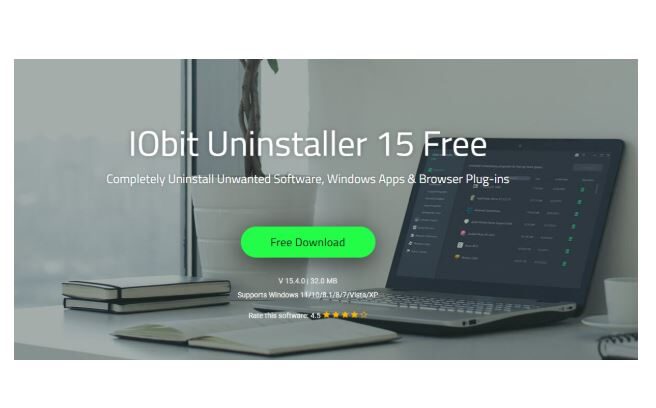
My desktop is my everything. I work remotely in Chrome all day, then in the evening I switch to 1080p games and sometimes record short tutorials. Over the years, I installed launchers, utilities, trials and store apps without thinking too much.
The result was predictable. Boot time kept creeping up, Windows felt heavier after each update and games had tiny freezes whenever something woke up in the background. Apps and Features in Windows could uninstall the obvious programs, but it did nothing about leftovers or the built-in clutter.
That is why I decided to try IObit Uninstaller seriously instead of treating it as a simple add remove tool. I wanted a way to see everything on the system in one place and then remove it cleanly, including registry and file traces.
The Features That Really Stood Out
From the product information and the official page, a few things convinced me to keep using IObit Uninstaller regularly:
- Clean and Light PC
It is built as a powerful uninstaller that uses an upgraded engine and better scan algorithms to remove programs quickly and then detect temp files, folders and registry entries they leave behind.
- One-click removal for Windows apps
The free version can uninstall unused or bundled programs and Windows apps from both Microsoft Store and third-party sources, including some built-in items that normal tools ignore.
- Plug in and toolbar cleanup
It can detect and remove malicious plug-ins and toolbars across major browsers and has an enlarged database to identify more bad extensions.
- Software Health
This feature scans for uninstallation leftovers, redundant setup files, hibernated software and unsafe permissions, then fixes them with one click to keep the system cleaner and safer.
Compared with Windows Apps and Features and classic tools like Revo that mainly focus on desktop programs, this mix of Windows app removal, browser cleanup and Software Health felt more complete for a heavily used gaming and work PC.
How I Used IObit Uninstaller In My First Month
Step 1: First, install and check all of my software.
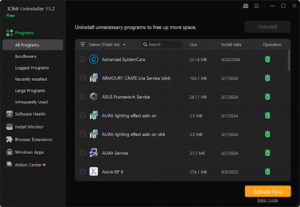
After installing IObit Uninstaller 15 Free, I opened it and let it load all programs, store apps and Windows components. The list was longer than I expected. I saw preinstalled games, trial media apps, forgotten tools and several large programs that I had not opened in more than a year.
Step 2: Cleaning regular and stubborn programs.
My first target was regular software that I knew I did not need. I sorted programs by size and last use. Then selected as a batch and clicked Uninstall with Powerful Scan turned on.
Each time a program’s own uninstaller finished, IObit Uninstaller scanned for files, folders and registry keys that still belonged to that app and showed them in a list. I reviewed the entries and removed them with one click. This deeper cleanup is what regular Apps and Features do not attempt.
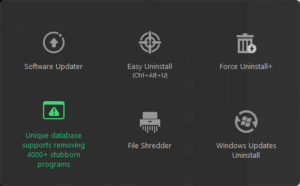
For a couple of stubborn utilities that had failed to uninstall in the past, I used the more aggressive removal options and managed to clear them completely, including their traces in the registry and ProgramData folders.
Step 3: Removing built-in apps and browser plug-ins
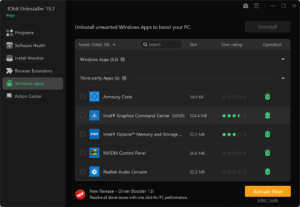
Next, I switched to the Windows Apps view. Here I could see built-in components and store apps together and sort them by size. I removed several preinstalled games, trial video apps and suggested tools that I never used and then ran a leftover scan to tidy up what they left behind.
I also opened the browser plug-in section. IObit Uninstaller listed extensions and toolbars from my browsers and highlighted some as unnecessary or risky using its internal database. I removed those and cleaned any associated files. This reduced random pop-ups and quiet background activity while browsing.
Step 4: Keeping things tidy with Software Health.
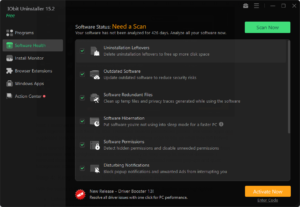
With the visible clutter gone, I went back to Software Health. Another scan highlighted:
- Leftover folders and data from previous uninstalls
- Redundant installation files and caches
- A few outdated programs and notification permissions that no longer made sense
Using Fix, I let it handle everything that was flagged as safe. After that, running Software Health became a quick weekly task, so the system would not slip back into the same state.
Advantages I Noticed
Once I had removed around 15 Windows apps and several large desktop programs, I checked the impact:
- Free space on my system drive increased by several gigabytes.
- Boot time dropped from a little under forty seconds to just over thirty.
- Idle CPU usage after startup fell from around ten percent to roughly half of that.
- In my usual 1080p shooter, the average frame rate rose slightly and the lowest one percent of frames were noticeably better, which meant fewer tiny freezes when background tasks started.
The numbers will be different for every system, but the improvements matched what you would expect after reducing background processes and cleaning accumulated traces. Just as important, having everything in one interface made ongoing maintenance much less of a chore.
Disadvantages I Ran Into
There are a few things that anyone using IObit Uninstaller should be aware of:
- Deep leftover scans and Software Health checks can take a little time on a machine that has years of history, so I run them when I am not in the middle of work or a game session.
- With features such as Install Monitor, Software Health and Windows app management, the interface is richer than a simple add remove panel. It took me a bit to learn where each option lives and what it does.
What I Think After Using It
After a month of using IObit Uninstaller as part of my normal routine, I no longer see reinstalling Windows as my first solution when the system starts to feel heavy. I can remove software, Windows apps and browser clutter in one place, clean their leftovers and then keep an eye on Software Health to stop the mess from building up again.
It did not magically transform my PC into something completely new, but it did give me back some performance, smoother boots and fewer background surprises. For a machine that has to handle remote work, games and occasional recording, that is what unleashing its true potential really means.