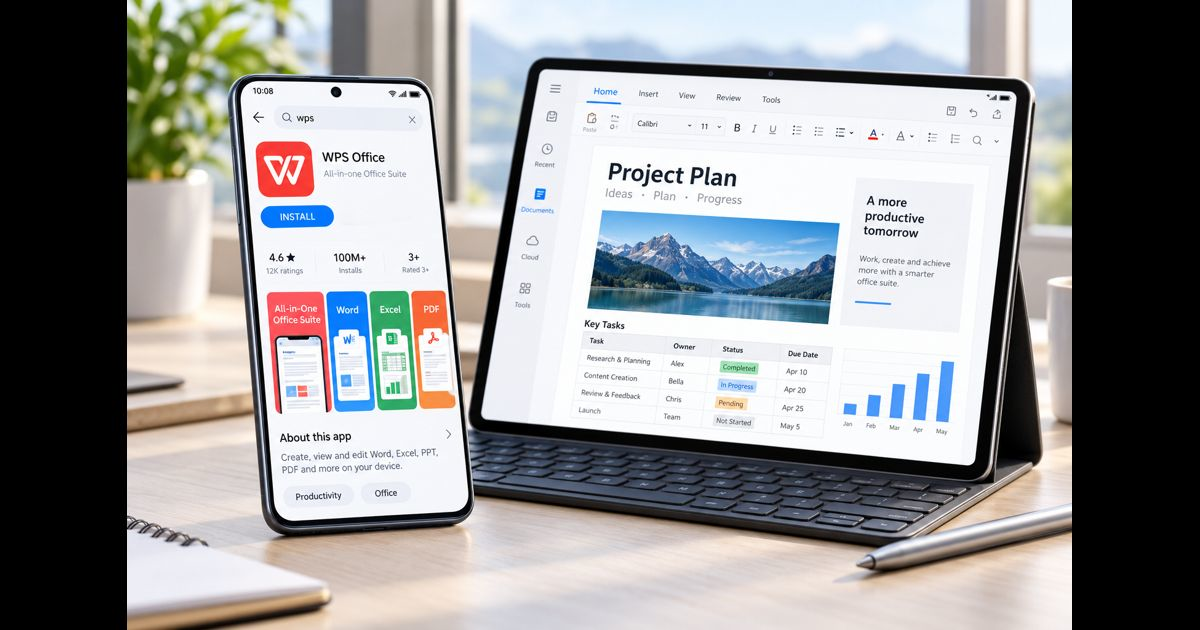
WPS Office is useful on a Huawei phone or tablet because it keeps everyday document work close at hand. Huawei’s guide gives a straightforward route: use AppGallery for the app, understand the difference between mobile WPS and the tablet PC Engine, and return to AppGallery if something goes wrong.

Install WPS Office from AppGallery
Start in Huawei AppGallery and search for WPS Office. The page states that WPS can be installed and used free on Huawei devices, so there is no need to begin with an unrelated download source.
For anyone looking up huawei wps, the important point is consistency. AppGallery is both the installation source and the place Huawei tells users to return to for updates.
Use the version that matches the device
On Huawei phones, the standard mobile WPS experience is built around a touch-first interface. Controls are simplified, and smaller-screen tools are placed inside menus. That keeps the app practical for reading, editing, reviewing, and handling documents while away from a PC.
Selected MatePad tablets can use the PC Engine version, which the source describes as offering a more desktop-like productivity experience and stronger multitasking. The two versions are related, but they are not meant to feel identical.
Check whether your device fits the listed range
The guide lists regular WPS support across Huawei P, Mate, nova, and Y Series phones, with examples including P60, P50, P40, Mate 60, Mate 50, Mate 40, nova 12, nova 11, nova 10, Y9s, Y7 and Y6.
For the PC Engine experience, the page names selected MatePad models such as MatePad 12 X, MatePad Pro 13.2 and 12.2, MatePad 11.5 and 11.5’S, and the MatePad 11 series. That distinction matters when comparing a phone installation with a tablet workflow.
What to do when WPS will not install
Huawei’s troubleshooting advice is short and specific. Reinstall the app through AppGallery first. If the installation still fails, open Settings > Apps & services > Apps, search for AppGallery, open Storage, and clear the AppGallery data.
After that, return to AppGallery and try the installation again. The source does not recommend switching to another store as the first fix.
How to update an installed copy
Once WPS Office is already on the device, updates are handled through AppGallery. Open AppGallery, tap Me, choose App updates, and update WPS Office.
That is especially useful for someone using WPS regularly while travelling or working away from a desktop. The maintenance routine stays in one place instead of relying on separate installers.
Why the mobile and tablet experiences feel different
A user moving between a Huawei phone and MatePad may notice that the menus and multitasking options do not match exactly. The source explains that mobile WPS is simplified for touch and small screens, while the PC Engine is closer to a desktop working environment on eligible tablets.
That difference is not an installation problem. It reflects the two interface designs described on the page.
Keep the workflow simple
The huawei wps guide comes down to a practical routine: install through AppGallery, use the WPS version appropriate for the device, update it from Me > App updates, and clear AppGallery data only if the store itself is blocking installation.
If more help is needed, Huawei also points users to tutorial and customer-support resources. Staying with the same installation and update path makes the setup easier to maintain.